


Most people come to Multilogin for one reason: they need to run multiple accounts on the same platform without those accounts getting linked or banned.
Affiliate marketers juggle dozens of ad accounts. Amazon sellers keep storefronts separate. Social media managers handle client profiles that can never appear connected. Multilogin handles the browser fingerprint side of that, giving each profile its own isolated identity.
But platforms do not stop at fingerprints. They also track IP addresses, and a shared IP across two profiles immediately gives the game away regardless of how clean the fingerprints are.
Knowing how to set up proxies in Multilogin is what makes the whole setup work. This guide covers:
- How to choose the right proxy type for Multilogin before touching any settings;
- How to set up proxies in Multilogin X across all four available methods;
- How to set up proxies in Multilogin 6, including protocols that Multilogin X no longer supports;
- A consolidated error-to-fix reference for the failures users run into most often.
What We Need Before We Start to Set Up Proxies in Multilogin
A proxy is a middleman server that routes traffic through its own IP address, so the websites we visit see that IP and its associated location rather than ours. Before any proxy entry makes sense in Multilogin, a few things need to be in place:
- An active Multilogin subscription with the desktop Agent installed and showing "Agent connected" in the Multilogin X dashboard (Multilogin 6 runs as a standalone desktop app);
- Proxy credentials: the protocol (HTTP, HTTPS, or SOCKS5; SOCKS4 also works in Multilogin 6), the IP or hostname, the port, and either a username plus password or a whitelisted local IP for IP-authenticated proxies;
- One unique IP per parallel profile, since sharing a single IP across two profiles running at the same time tells every platform those accounts share a device.
Multilogin X users on a paid plan also have access to the built-in Multilogin residential proxy network, which skips the third-party provider step entirely.
Choosing the Right Proxy Type to Set Up in Multilogin
Proxy type matters more than most tutorials acknowledge when setting up proxies in Multilogin. The wrong choice does not break the connection, but it does get accounts flagged on stricter platforms.
Residential, Datacenter, or Mobile Proxies in Multilogin?
The three main proxy categories each suit a different use case in Multilogin:
Residential IPs are assigned by consumer ISPs to real households, so platforms treat them as ordinary home traffic with a much lower ban threshold. They are the standard choice for social media, ad accounts, e-commerce, and any login-heavy workflow when setting up proxies in Multilogin;
Datacenter IPs come from hosting providers and server farms. They are faster and cheaper, well-suited to scraping or browser automation where account safety is less of a concern. Many social platforms flag datacenter ranges on sight;
Mobile IPs route through 4G and 5G carrier networks, mimicking smartphone traffic. They tend to earn even more trust than residential IPs on strict platforms, though at a higher bandwidth cost.
Static (Sticky) or Rotating Proxies in Multilogin?
For logged-in accounts in Multilogin, consistency matters: a profile that connects from Germany today and from Brazil tomorrow will trigger a security review on almost any platform. Static (sticky) proxies keep the same IP across a session or across multiple sessions, and Multilogin's built-in residential proxy supports sticky sessions of up to 24 hours with a manual Refresh IP option for when a fresh IP is genuinely needed.
Rotating proxies swap the exit IP on each request or at a timed interval. They are the right fit for scraping or bulk verification work in Multilogin where session identity does not matter.
Supported Protocols When Setting Up Proxies in Multilogin
HTTP and HTTPS both handle browser traffic, with HTTPS adding an encrypted hop between our machine and the proxy. SOCKS5 is protocol-agnostic, handles any traffic type, and is the preferred choice when a provider supports it.
Multilogin 6 additionally supports SOCKS4 and proxy-over-SSH (POSSH), both of which have been removed from Multilogin X. POSSH routes traffic through any server we have SSH access to, without needing a proxy daemon installed on that server.
How to Set Up Proxies in Multilogin X
Multilogin X offers four distinct paths for proxy configuration, and most third-party tutorials only cover two of them. Here is how to set up proxies in Multilogin X across all four options.
Option 1: Multilogin's Built-In Residential Proxy (Fastest Path)
The built-in path requires no external provider account. Residential and mobile traffic is included with every Multilogin X paid plan, with additional bandwidth available as a top-up.
1. From the Multilogin X dashboard, click + Create or New profile.
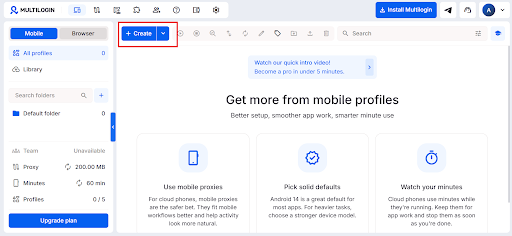
2. Name the profile after its intended platform or account ("Shopify-US-01" or "FB-Ads- Account-3") to keep proxy assignments easy to track.
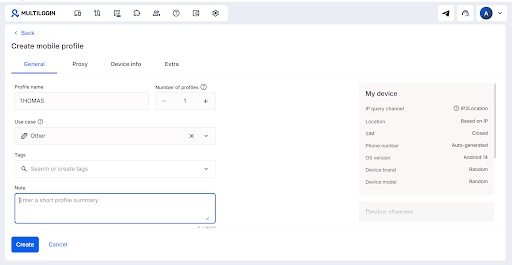
3. In the Proxy section, set the type to Multilogin Proxy.
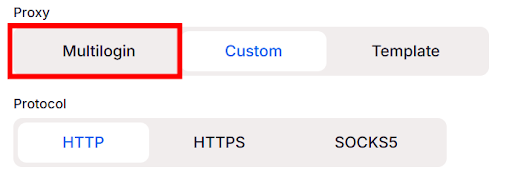
4. Choose a country or region. The Advanced fields expose sticky-session length (up to 24 hours or a custom interval in seconds) and an IP quality filter toggle that narrows the pool to cleaner IPs.
5. Click Check proxy. A green "Proxy check passed" means Multilogin reached the IP and pulled its location, timezone, and WebRTC data.
Save and click Start to launch the profile.
The bottom-left corner of Multilogin X shows remaining proxy traffic. A negative figure like "−1000 bytes" means the included traffic is exhausted, and profiles using the built-in proxy will not launch until the balance is topped up.
Option 2: Custom HTTP, HTTPS, or SOCKS5 Proxy in Multilogin X
This is the path for anyone bringing their own proxy from a third-party provider when setting up proxies in Multilogin X.
Open + Create → New profile.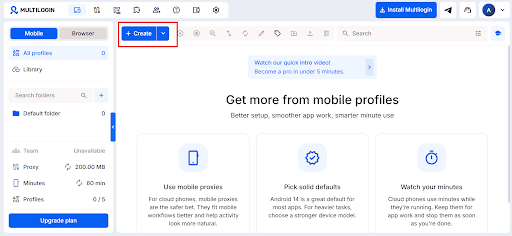
2. In the Proxy section, switch the type to Custom.
3. Select the protocol: HTTP, HTTPS, or SOCKS5.
4. Paste credentials into the IP or host field. Multilogin accepts the full "IP:port:login:password" string in one paste and auto-fills the individual fields; for IP-authenticated proxies, leave Login and Password blank and ensure the local IP is whitelisted in the provider's dashboard.
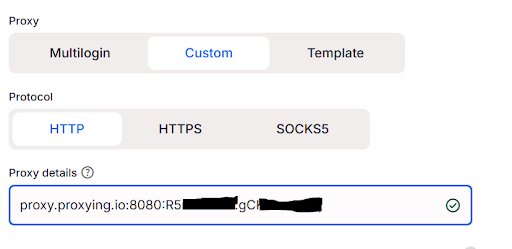
5. Toggle Advanced mode (optional) to enable:
Traffic Saver, which blocks images and autoplay video to cut bandwidth on metered residential plans;
Manual timezone and geolocation overrides, useful when a provider's IP returns a location that does not match the target region.
6. Click Check proxy to validate, then save and launch.
Some providers use extended username syntax for geo or session parameters, for example "customer-username-country-jp-session-1" as the login string. These go into the Username field exactly as the provider specifies; Multilogin passes them through without modification.
Option 3: Quick Profiles for Throwaway Sessions in Multilogin X
Quick profiles skip the full fingerprint configuration and launch faster, making them the right fit for single-use or short-session work in Multilogin X.
Click Quick on the main dashboard.
Under Proxy, choose Custom → One proxy for a single IP or Custom → Proxy list for multiple.
Option 4: The Proxy Template Manager for Repeatable Workflows in Multilogin X
The Proxy Template Manager is the feature most competitor tutorials miss entirely when covering how to set up proxies in Multilogin. It lets us save a proxy configuration once and apply it to as many profiles as needed, with no re-entering of credentials per profile.
- Open Proxies in the left-hand navigation of Multilogin X.
- Click Add new and fill in a template name, type, connection type, protocol, location, and sticky-session length.
- Click Check Proxy to confirm the template connects, then save it.
The saved template appears as a selectable option during any future profile creation in Multilogin X. Templates can be bulk-checked and bulk-deleted from the same screen, which makes managing proxy sets across dozens of accounts significantly faster.
How to Set Up Proxies in Multilogin 6 (Legacy)
Multilogin 6 is the legacy desktop-only version and is no longer available to new users. Users who still hold an active subscription, or who run macOS Ventura, Monterey, or Big Sur (which Multilogin X no longer supports), will need these steps to set up proxies in Multilogin 6.
Adding HTTP, HTTPS, SOCKS5, or SOCKS4 Proxies to a Profile in Multilogin 6
Open the Multilogin 6 app and click New profile.
Enter a profile name and choose a browser engine: Mimic (Chromium-based) or Stealthfox (Firefox-based).
In the Proxy section, select a connection type: HTTP, HTTPS, SOCKS5, or SOCKS4 (unique to Multilogin 6).
Paste credentials in "IP:port:username:password" format; the remaining fields populate automatically.
Click Check proxy. Multilogin 6 labels a pass "Connection test passed" and a failure "Connection test failed," which differs from Multilogin X's wording.
Save and launch.
Proxy over SSH (POSSH) in Multilogin 6
Multilogin 6 includes a POSSH plugin that routes browser traffic through an SSH server as a SOCKS-style tunnel. Select POSSH as the connection type and fill in the SSH host, port, and credentials the same way as a SOCKS5 entry. This is worth using whenever we have SSH access to a server but have not installed a proxy daemon on it, since the SSH connection itself is sufficient.
What Multilogin 6 Does Not Have
The built-in Multilogin residential proxy, the Proxy Template Manager, Traffic Saver, and Quick-profile rotation are all exclusive to Multilogin X. Multilogin provides a one-click migration that preserves existing fingerprints when moving from Multilogin 6.
Testing the Proxy and Checking for Leaks in Multilogin
The in-app Check proxy button confirms connectivity but does not confirm that the profile is fingerprint-consistent or leak-free. A second verification step after launch is essential when setting up proxies in Multilogin for account-based work.
Reading the In-App Check Proxy Result
A green "Proxy check passed" (Multilogin X) or "Connection test passed" (Multilogin 6) means Multilogin reached the proxy, resolved an external IP, and pulled its location, timezone, and WebRTC data. A red result points to one of three causes: the IP is offline or credentials are wrong, a local firewall is blocking the outbound port, or the built-in proxy traffic balance is exhausted.
Launch Leak Verification for Proxies in Multilogin
After launching a profile in Multilogin, opening one of the following testers as the first tab catches the issues the in-app check misses:
- whoerip.com, which confirms the visible IP and its associated location;
- pixelscan.net, which flags fingerprint inconsistencies, IP-versus-timezone mismatches, and IP quality score;
- browserleaks.com, which runs granular WebRTC, DNS, and IPv6 leak checks in one page;
- maxmind.com, which provides an independent geolocation lookup for cross-checking.
A clean result shows the visible IP matching the configured country, timezone and locale aligned to that country, WebRTC exposing only the proxy IP, and DNS queries resolving through a server near the proxy's country.
Fixing DNS Leaks with Custom DNS in Multilogin
Both Multilogin X and Multilogin 6 allow a custom DNS resolver to be set per profile in the advanced settings. If BrowserLeaks shows DNS queries falling back to the home ISP's resolver, setting a DNS endpoint in the proxy's target country fixes the leak without changing anything else in the Multilogin profile.
Fixing the Proxy Errors We See Most Often in Multilogin
The following errors surface repeatedly when users set up proxies in Multilogin. Each entry below maps the exact error string to its most likely cause and fastest fix.
"Proxy Check Failed" / "Connection Test Failed"
The proxy IP is unreachable, credentials are wrong, or the Multilogin X traffic balance has gone negative. Re-paste credentials carefully, since extra spaces and line breaks are common culprits when copying from a spreadsheet. If credentials look correct, test the IP outside Multilogin to confirm it is live, and check the traffic balance in the bottom-left corner for the built-in proxy.
"Failed to Get IP Data: Can't Connect Through Proxy"
A local firewall, antivirus, or active VPN is intercepting Multilogin's outbound connection before it reaches the proxy. Adding Multilogin to the firewall's exceptions and restarting the Agent resolves the majority of these cases.
"Wrong Proxy Data"
Multilogin shows this when the built-in proxy traffic balance is negative (shown as something like "−1000 bytes" in the corner) or when credentials from a shut-down service have been entered. Topping up the traffic balance or replacing the IP resolves it.
ERR_CONNECTION_RESET Inside a Launched Multilogin Profile
The proxy dropped the session mid-connection. Clicking Check proxy on the profile confirms whether the drop was temporary (pass) or whether the IP has been recycled (fail). Switching to a different IP in the same country is the fastest fix when the check keeps failing.
ERR_TIMED_OUT or ERR_CONNECTION_CLOSED
These usually point to ISP-level blocking of the proxy provider's IP range or instability on the provider's end. Switching to a mobile hotspot is a fast diagnostic: if the Multilogin profile launches on mobile data, the home network is the source of the block. A VPN using the OpenVPN protocol can work around the ISP block without collapsing per-profile isolation.
"Can't Open Session" / "Profile Failed to Start"
Multilogin's documentation notes that most profile-launch failures trace back to the proxy layer. The diagnostic order is: test the proxy via Check proxy first, then verify the Agent is connected, then check for antivirus or firewall conflicts. In Multilogin 6, deleting stale ".lock" files from the app's data folder clears profiles stuck in a "running" state after a force-close.
"start_browser_error" (Cloudflare HTTP 530)
This appears when a Launcher or browser core update was interrupted mid-download. Reconnecting the Agent and re-downloading browser components from the Multilogin X dashboard resolves it.
"Failed to Get Profile Data"
A transient server-side sync issue in Multilogin. Refreshing the Agent connection and retrying clears it in most cases; if it persists, logging out and back in triggers a full profile re-sync.
One fix that resolves a disproportionate share of intermittent proxy errors in Multilogin: confirm the system clock is set to sync automatically. A drifted clock breaks proxy authentication handshakes silently and produces errors that look like credential problems.
Best Practices for Proxies in Multilogin
- Use one IP per profile, every time. Assigning the same IP to two concurrent Multilogin profiles is the single most common way to undermine account isolation, since platforms link accounts by IP before anything else;
- Match the proxy location to the profile's timezone and language. Multilogin automatically syncs timezone and geolocation to the proxy when Check proxy passes, but the profile's browser language must also align. A German IP with an English (US) locale still looks inconsistent to a fingerprinting system;
- Keep the same proxy on the same profile for login-heavy accounts. Frequent IP changes trigger security prompts even when each IP is individually clean. Multilogin's built-in 24-hour sticky sessions are the right tool for any workflow that involves staying logged in across sessions;
- Use rotating residential proxies for scraping and static residential proxies for login work. Proxy type should follow account risk, not cost optimization alone;
- Avoid free proxy lists for any account-based work in Multilogin. Free residential IPs circulate through many users and arrive already flagged. Multilogin's documentation warns specifically against credentials from shut-down services: if they appear to work briefly, the IPs are almost certainly burned;
- Use OpenVPN if a system-wide VPN is needed alongside Multilogin. A full-device VPN assigns one IP to every profile and collapses per-profile isolation. Multilogin's FAQ confirms OpenVPN is the only protocol that works reliably with the Agent.
Frequently Asked Questions
Yes. Multilogin X includes a built-in residential and mobile proxy network on every paid plan, with bandwidth included and top-up traffic available at a fixed per-GB rate. Multilogin 6 does not include a built-in proxy network; users must bring their own when setting up proxies in Multilogin 6.
Yes, for any workflow running multiple Multilogin profiles in parallel. Each profile needs a distinct IP to prevent platforms from linking accounts through shared connection data.
Multilogin X supports HTTP, HTTPS, and SOCKS5. Multilogin 6 additionally supports SOCKS4 and proxy-over-SSH (POSSH). Both versions accept password-authenticated and IP-authenticated proxies.
Launch the Multilogin profile and open browserleaks.com. The "Usage Type" and "ISP" fields show whether the IP routes through a consumer ISP (residential) or a hosting provider (datacenter).
Multilogin could not reach the proxy endpoint. The most common causes are a wrong credential, an offline IP, an exhausted traffic balance on the built-in proxy, or a local firewall blocking the outbound port.
Multilogin X adds the built-in residential proxy network, the Proxy Template Manager, Traffic Saver, and Quick-profile rotation with up to 25 IPs. Multilogin 6 retains SOCKS4 and POSSH support and runs on older macOS versions, but is no longer available to new subscribers.
Wrapping Up
For most users setting up proxies in Multilogin today, Option 1 (the built-in residential proxy on Multilogin X) is the fastest and most reliable starting point, with no provider account needed and sticky sessions that handle login consistency automatically.
If a third-party provider is already in use, Option 2 with a residential or mobile proxy is the right call for anything account-based, and the Proxy Template Manager makes it scale without tedious credential re-entry.
The Quick Profiles rotation in Option 3 is worth knowing for bulk throwaway work, but should not be the default for accounts that need to stay alive across sessions.
The errors worth taking more seriously are the "ERR_TIMED_OUT" and "ERR_CONNECTION_CLOSED" class, since those often point to an ISP-level block that a simple credential fix will not solve. Before going live with any new Multilogin setup, check out our guides on proxy providers, comparisons, and platform-specific account management for everything else that goes in to keeping accounts safe.